Your First NPC
Build a talking NPC in your Unity scene.
Prerequisites
- Installation complete — SDK imported, Editor and Server API keys configured in the Control Panel
Step 1: Create an Entity Mind
Your NPC needs a personality. Create one in the dashboard:
- Go to loremind.peekgames.dev
- Click Entity Minds > Create
- Fill in:
- Name:
Innkeeper Garrick - Personality:
Friendly tavern keeper who loves gossip. Knows everyone in town.
- Name:
- Click Create
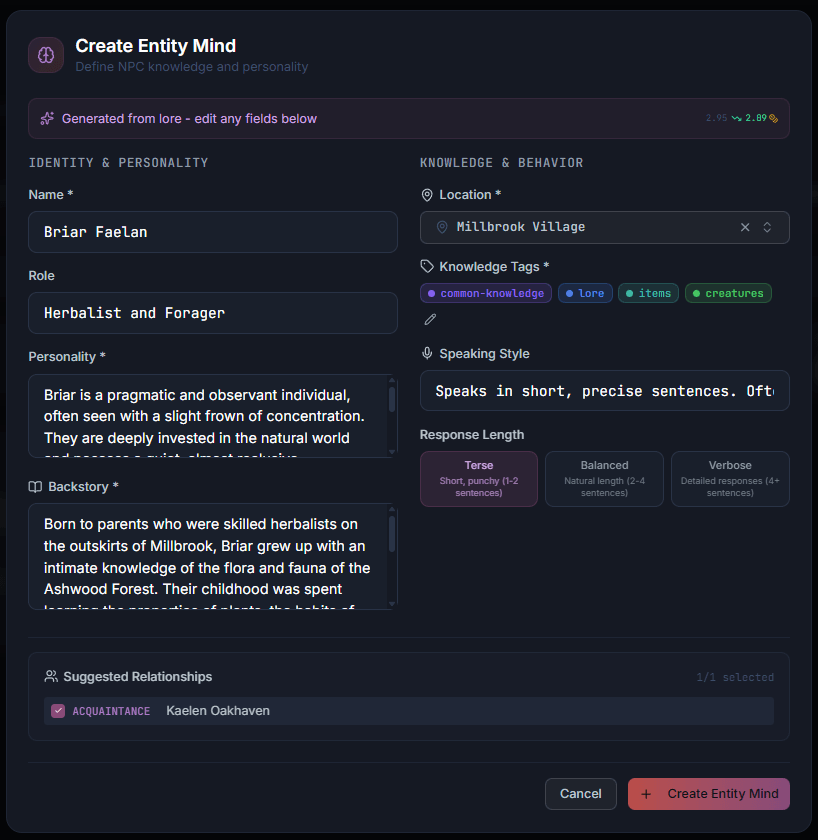
See Entity Minds for detailed configuration options.
Step 2: Add an NPC to Your Scene
- Create a new GameObject (or select an existing character)
- Name it
Innkeeper - Add Component > LoreMind > LoreMind NPC
- In the Inspector, select
Innkeeper Garrickfrom the Entity Mind dropdown
Step 3: Talk to Your NPC
Create a simple test script:
using UnityEngine;
using Peek.LoreMind;

public class TalkToNPC : MonoBehaviour
{
    [SerializeField] private LoreMindNPC npc;

    void Start()
    {
        TestNPC();
    }

    async void TestNPC()
    {
        Debug.Log("Asking NPC a question...");

        var response = await npc.RespondAsync("Hello! What's your name?");

        if (response != null && response.success)
        {
            Debug.Log($"NPC says: {response.response}");
        }
        else
        {
            Debug.LogError($"Error: {response?.message ?? "No response"}");
        }
    }
}- Attach this script to your Innkeeper GameObject
- Drag the
LoreMindNPCcomponent to thenpcfield - Press Play
- Check the Console for the NPC’s response
Quick Reference
Event-Based Pattern
If you prefer events over async/await:
void Start()
{
    npc.OnResponseReceived.AddListener(OnNPCResponse);
    npc.OnError.AddListener(OnNPCError);
}

public void OnPlayerSpeak(string text)
{
    npc.Respond(text); // Fire and forget
}

void OnNPCResponse(string npcText)
{
    dialogueUI.ShowText(npcText);
}

void OnNPCError(string error)
{
    Debug.LogError($"NPC Error: {error}");
}
Checking Response Metadata
var response = await npc.RespondAsync("Hello!");

if (response.success)
{
    Debug.Log($"Response: {response.response}");
    Debug.Log($"Character: {response.character}");

    if (response.metadata.memoryCheckpoint)
        Debug.Log("Memories auto-saved — conversation was long");
}
Troubleshooting
Entity Mind dropdown is empty
- Check your Editor API Key is configured (starts with
sk_editor_) - Click the Refresh button next to the dropdown
- Verify you’ve created at least one Entity Mind in the dashboard
”Unauthorized” or “Invalid API key”
- Editor keys start with
sk_editor_ - Server keys start with
sk_server_ - Make sure you copied the full key
NPC not responding
- Check the Console for error messages
- Verify internet connection
- Ensure the Entity Mind is selected in the Inspector
”Insufficient credits”
- Purchase more credits at loremind.peekgames.dev
- Check your balance in Dashboard > Billing
What’s Next?
You have a working NPC. Here’s what to explore:
Add Context
Context helps NPCs understand their surroundings:
npc.SetLocation("The Rusty Anvil Tavern", "Crowded and noisy");
npc.Context.timeOfDay = "evening";

var response = await npc.RespondAsync("Is it always this busy?");
// NPC responds knowing they're in a busy tavern at night
See Context System for details.
Add Voice
Let players speak to NPCs:
- Voice Input - Speech-to-text
Prepare for Production
Before shipping your game, you need to:
- Set up a backend to securely route NPC requests
- Configure the SDK to use your backend URL
- Enable long-term memory with player IDs
See Backend Setup for complete instructions.
Full Guides
- LoreMindNPC Component - Full component guide
- Long-Term Memory - NPCs remember players
Last updated on